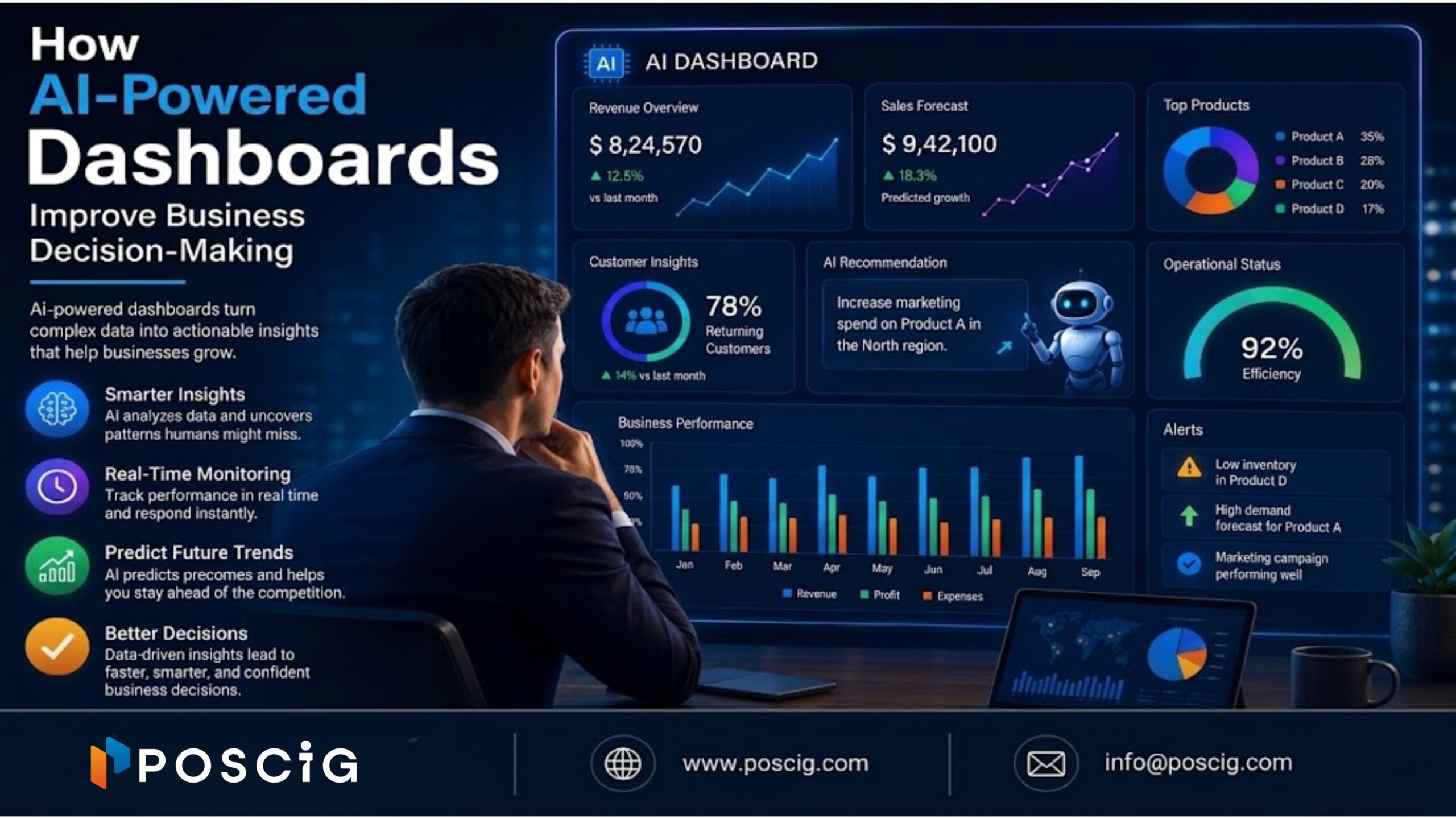
In today’s data-driven world, businesses are collecting massive amounts of data but making sense of it is the real challenge.
Many organizations struggle with:
Scattered data across multiple systems
Slow nd inefficient reporting
Delayed decision-making due to outdated insights
From sales teams tracking performance in spreadsheets to finance teams juggling multiple databases, data silos create confusion and inefficiency.
This is where Power BI SQL Server integration becomes a game-changer.
By combining the robust data management capabilities of SQL Server with the visualization power of Power BI, businesses can transform raw data into actionable insights in real time.
What is Power BI & SQL Server Integration?
What is Power BI?
Power BI is a business analytics tool that helps visualize data through dashboards and reports.
What is SQL Server?
SQL Server is a relational database system used to store, manage, and retrieve structured data efficiently.
How Integration Works
When you integrate Power BI with SQL Server:
- SQL Server acts as the data source
- Power BI connects, transforms, and visualizes the data
Import vs DirectQuery Overview
- Import Mode → Data is stored inside Power BI (fast performance)
- DirectQuery Mode → Data stays in SQL Server (real-time access)
Choosing the right method depends on your data size and business needs
Why Businesses Face Data Modeling Challenges
Even with data available, many companies struggle with effective data modeling due to:
Data Silos
Different departments use different systems → no unified view
Poor Data Structure
Unorganized tables lead to inaccurate insights
Slow Performance
Heavy datasets slow down dashboards and reports
Example: A sales team cannot match CRM data with financial data, leading to wrong revenue analysis
Methods to Connect Power BI with SQL Server
Method | Description | Best For |
Import Mode | Loads data into Power BI | Fast performance dashboards |
DirectQuery | Real-time connection | Large datasets |
Live Connection | Connects to existing data models | Enterprise-level systems |
The best way to use SQL Server with Power BI depends on your data size and reporting needs
Data Modeling Best Practices
To achieve efficient Power BI data modeling with SQL Server, follow:
- Use Star Schema (Fact & Dimension Tables)
- Clean and transform data in SQL before importing
- Avoid duplicate and redundant data
- Maintain proper table relationships
- Use calculated columns only when necessary
These practices ensure accurate and scalable data models
Performance Optimization Techniques
High-performing dashboards require smart optimization:
- Optimize SQL queries (indexing, joins)
- Reduce unnecessary data load
- Use aggregations for large datasets
- Avoid heavy DAX calculations
These techniques improve speed, performance, and user experience
Real-World Use Cases
Sales Dashboards
Track revenue, performance, and targets in real time
Financial Reporting
Accurate profit-loss analysis using structured data
Business Intelligence
Identify trends and patterns for better strategy
Operations Tracking
Monitor supply chain, logistics, and efficiency
These use cases highlight the benefits of integrating Power BI with SQL Server
When to Use Professional Power BI Services
You should consider expert help when:
- Handling large or complex datasets
- Building real-time dashboards
- Managing enterprise-level reporting systems
Professional services ensure scalability, accuracy, and efficiency
Future of Data Modeling with Power BI + SQL Server
The future is evolving rapidly with:
- AI-driven analytics
- Real-time business intelligence
- Cloud-based data integration
Businesses adopting these technologies gain a competitive advantage
Conclusion
Integrating Power BI with SQL Server is no longer optional it’s essential for businesses aiming to leverage data effectively.
By implementing the right data modeling techniques and optimization strategies, organizations can unlock powerful insights and make faster, smarter decisions.
With the right approach and expertise, platforms like Power BI and SQL Server can transform your data into a strategic asset for growth.
FAQ
How to connect Power BI to SQL Server step by step?
Open Power BI → Get Data → SQL Server → Enter server details → Choose Import or DirectQuery → Load data.
What is DirectQuery vs Import mode?
- Import = faster performance
- DirectQuery = real-time data
Which is better for large datasets?
DirectQuery is better for real-time large datasets, but Import offers better speed.
Why is SQL Server used with Power BI?
SQL Server provides structured, secure, and scalable data storage for Power BI visualization.
How do you ensure the security of our applications and data?
We follow industry-leading cybersecurity practices including data encryption, secure code audits, vulnerability testing, and compliance with global standards like GDPR.